Classrooms
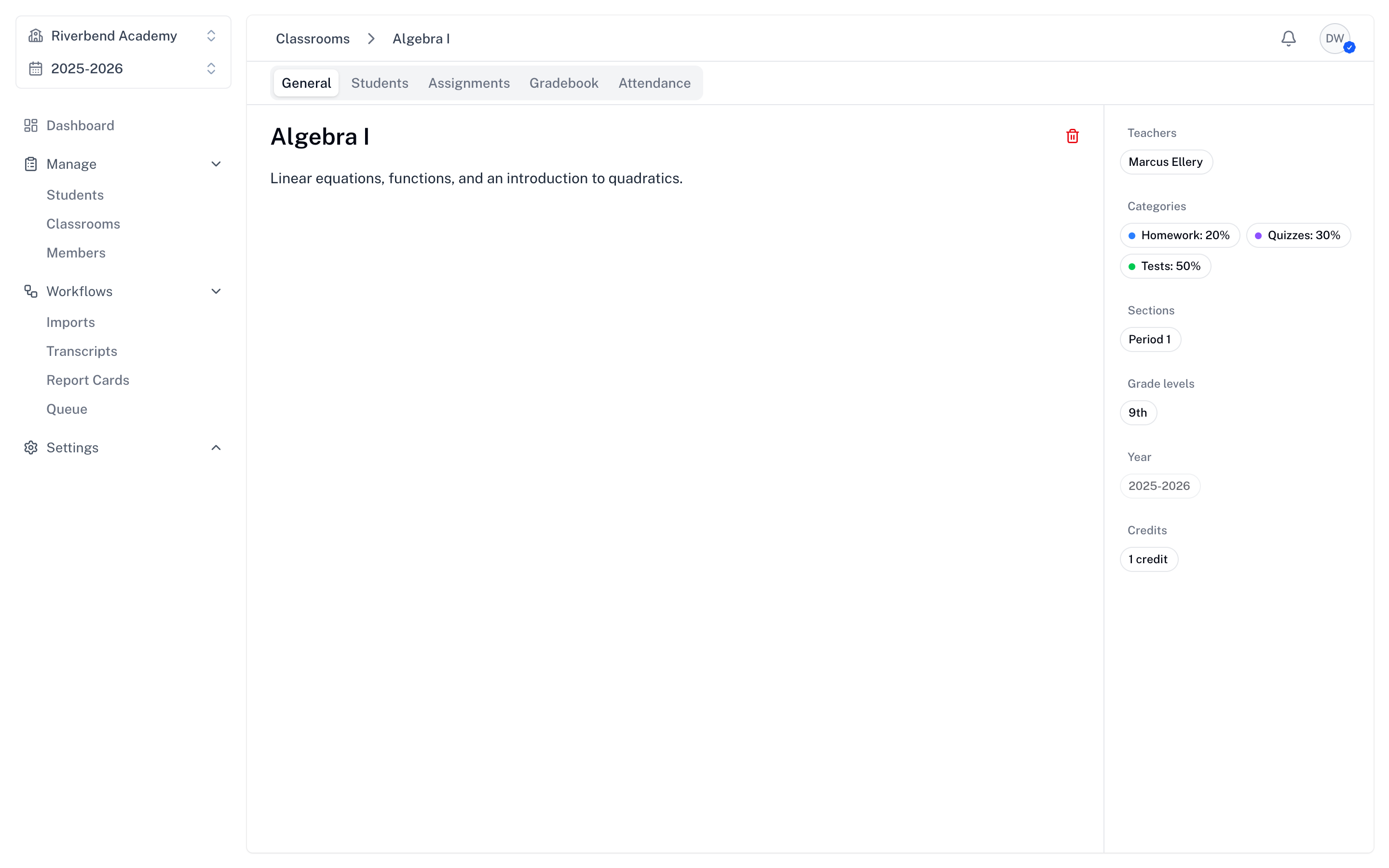
Classrooms are where teaching happens in SimpleGrader. Each classroom brings together students, teachers, assignments, grades, and attendance into one organized space.
What is a Classroom?
A classroom in SimpleGrader represents a single course in a single academic year. It contains:
- Students enrolled in the class
- Teachers who manage the class
- Assignments organized by grading categories
- Grades for student work
- Attendance records
- Sections for scheduling (e.g., Period 1, Block A)
Creating a Classroom
- Navigate to Classrooms in the sidebar
- Click Add Classroom
- Fill in the details:
- Name (required) — e.g., "Algebra 1" or "English 101"
- Description (optional, rich text) — course description, syllabus notes
- Teachers — one or more users from your school
- Categories — grading categories with weights (see below)
- Sections — meeting times this classroom uses (from your school-wide pool)
- Grade Levels — which grades this class serves
- Year — defaults to the school's current academic year
- Credits — credit value for transcripts
- Click Create Classroom
Grading Categories
Each new classroom starts with the default categories configured in your school settings. If you haven't set defaults, the form falls back to a single "Assignments" category at 100%.
You can edit categories during creation or later from the classroom's General tab:
| Category | Weight | Color |
|---|---|---|
| Homework | 20% | Blue |
| Quizzes | 30% | Amber |
| Tests | 40% | Red |
| Participation | 10% | Green |
Each category can also have a color, used to tag assignments in the gradebook and on the student dashboard.
Editing a Classroom
Classroom settings save automatically — there is no Edit button. Open a classroom and your changes are persisted as you go:
- Name and Description save shortly after you stop typing
- Teachers, Categories, Sections, Grade Levels, and Credits save immediately when changed
The Year is the one exception — it's locked after the classroom is created.
Classroom Tabs
A classroom is organized into five tabs across the top of the page:
| Tab | What lives there |
|---|---|
| General | Name, description, teachers, categories, sections, grade levels, credits |
| Students | Enrolled students and their section assignments |
| Assignments | All assignments for this classroom — see Assignments |
| Gradebook | Spreadsheet-style grading — see Grading |
| Attendance | Daily attendance records — see Attendance |
Adding Students to a Classroom
- Open the classroom and switch to the Students tab
- Click the + button in the toolbar — the Add Students dialog opens
- (If the classroom has sections) pick a section — all students added in this step land in that section
- Select students from your school roster, or click Add Grade Grades to bulk-add everyone whose grade level matches the classroom in one shot
- Click Add
Only students whose grade level matches the classroom appear in the picker. Added students immediately appear in the gradebook and attendance roster.
Moving Students Between Sections
When a classroom has multiple sections (e.g., a Period 1 and Period 2 cohort of the same course), you can shift students between them:
- Per student: click the menu next to any student row → Move to section or Clear section.
- In bulk: select multiple students, then pick a section from the toolbar that appears at the bottom of the page.
Removing Students from a Classroom
You can remove students one at a time or in bulk:
- Per student: open the row menu → Remove.
- In bulk: select multiple students, then click Remove in the toolbar.
Managing Sections
Sections live at the school level, not the classroom level. Day-of-week schedules and meeting times are configured in Settings > Attendance.
A classroom picks which of those sections it uses on its General tab. A single section can be shared by multiple classrooms (e.g., a "Period 3" section that covers any class meeting at that time).
When you take attendance, SimpleGrader auto-suggests the right section based on the current time.
Assigning Teachers to Classrooms
Multiple teachers can be assigned to a single classroom from the Teachers dropdown on the General tab.
All assigned teachers can:
- View and edit the gradebook
- Take attendance
- Manage assignments
- View student information
See Teachers for managing your school's teacher roster.
Exporting the Student Roster
From the classroom's Students tab, open the menu next to the search field and choose Export to CSV to download the current roster.
Deleting a Classroom
To delete a classroom, click the trash icon in the upper right of the classroom page (visible to school administrators only) and confirm.