Basics
Assignments
Create and organize assignments with categories, due dates, and point values.
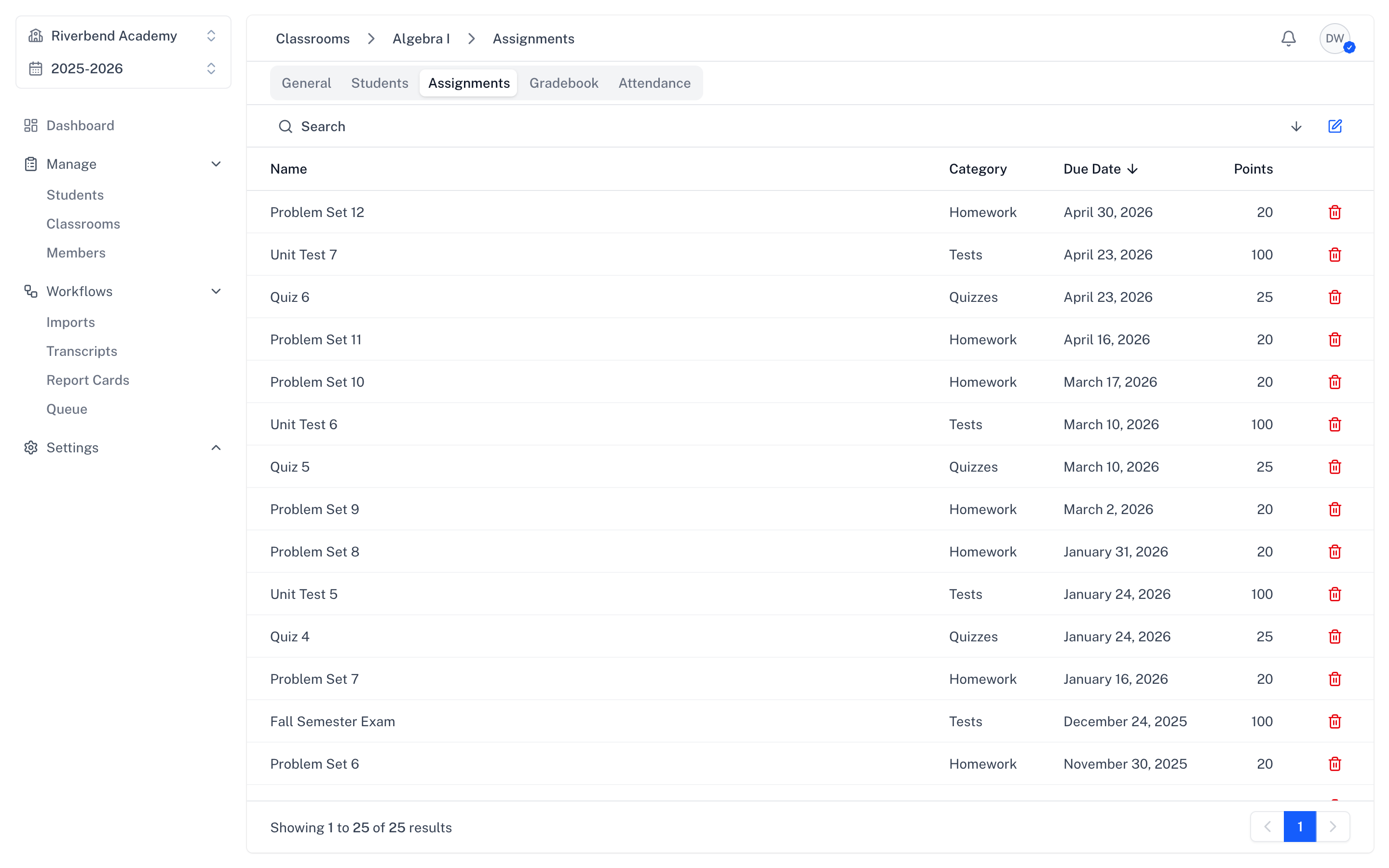
Assignments are the work you give to students. Each one belongs to a classroom, falls under a grading category, and has a point value that contributes to the student's grade.
Grading categories (Homework, Quizzes, Tests, etc.) live on the classroom — see Classrooms for how to configure them and how category weights affect the final grade.
Adding a New Assignment
- Open the classroom and switch to the Assignments tab
- Click Add Assignment
- Fill in the details:
- Name (required) — e.g., "Chapter 5 Quiz"
- Category (required) — pick from the classroom's categories
- Term (required) — defaults to the school's current term
- Total Points (required) — maximum points possible; must be at least 1
- Due Date (optional) — when the work is due
- Description (optional, rich text) — instructions or notes
- Click Create Assignment
Use Create & Add New to quickly add multiple assignments in a row.
Editing an Assignment
Assignment details save automatically — there is no Edit button. Open an assignment and your changes are persisted as you go:
- Name and Description save shortly after you stop typing
- Category, Term, Due Date, and Total Points save immediately when changed
Deleting an Assignment
To delete an assignment, open it and click the trash icon in the upper right, then confirm.
Deleting an assignment also removes all student grades for that assignment. This cannot be undone.
Assignment Tips
Leave due dates blank for ongoing or flexible assignments. They'll still appear in the gradebook.
Use consistent naming like "Ch. 1 Quiz", "Ch. 2 Quiz" so assignments are easy to scan and sort.
Total points don't directly equal weight. Within a single category, a 10-point quiz and a 100-point quiz have the same impact on the final grade — the category's weight is what matters. See Classrooms for how weights work.