Sections
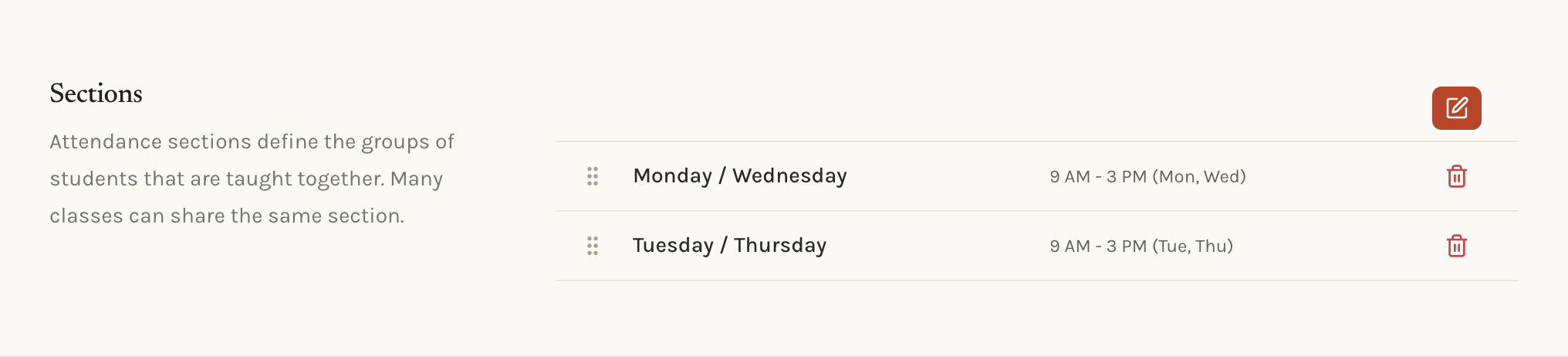
A section is a slot in the week: a name, the days it meets, and a start and end time for each day. Period 1 on Monday through Friday from 8:00 to 8:50. Block A on Tuesday and Thursday from 9:00 to 10:30. Sections belong to the school, not to a classroom, so a school with seven periods defines seven sections once and every classroom picks from that list.
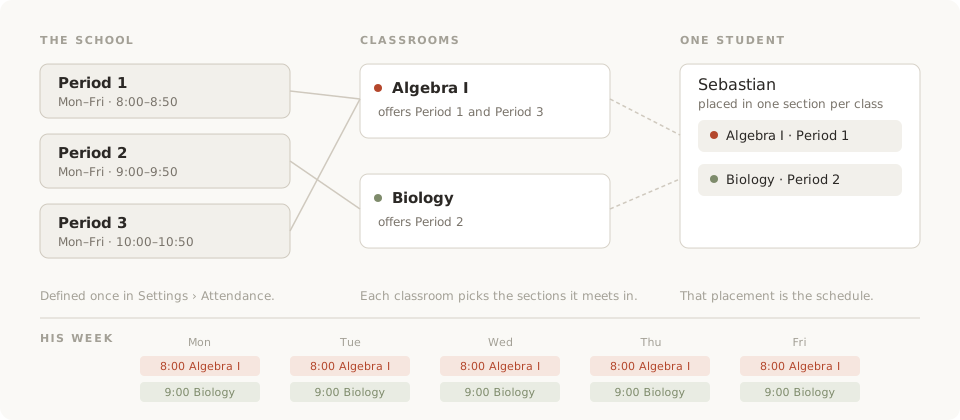
Three layers
| Layer | Who sets it | Where |
|---|---|---|
| The school defines sections | Administrators | Settings › Schedule |
| A classroom offers some of them | Whoever edits the classroom | The classroom form |
| A student is placed in one section per classroom | Whoever manages the roster | The classroom's Students tab |
Defining. Each section has a name and a set of days, with a start and end time per day. Drag them into the order teachers expect. Times are read in the school's timezone, set in Settings › General.
Offering. When a classroom is created or edited, pick which of the school's sections it meets in. A class that runs twice a day offers two sections. A class that meets whenever offers none.
Placing. Each student on a roster sits in one of the classroom's sections, or in none. That placement is the student's schedule, and it decides which attendance session they appear in.
Placing students
Adding students to a classroom, from the Students tab, asks which of the classroom's sections they sit in. The first section is preselected, so a classroom that meets once a day never asks twice. A classroom with no sections skips the question.
To move a student later, open the row's menu on the same tab and choose Move to another section, or Clear section to leave them unplaced. Tick several rows and a section picker appears in the toolbar to move them all at once.
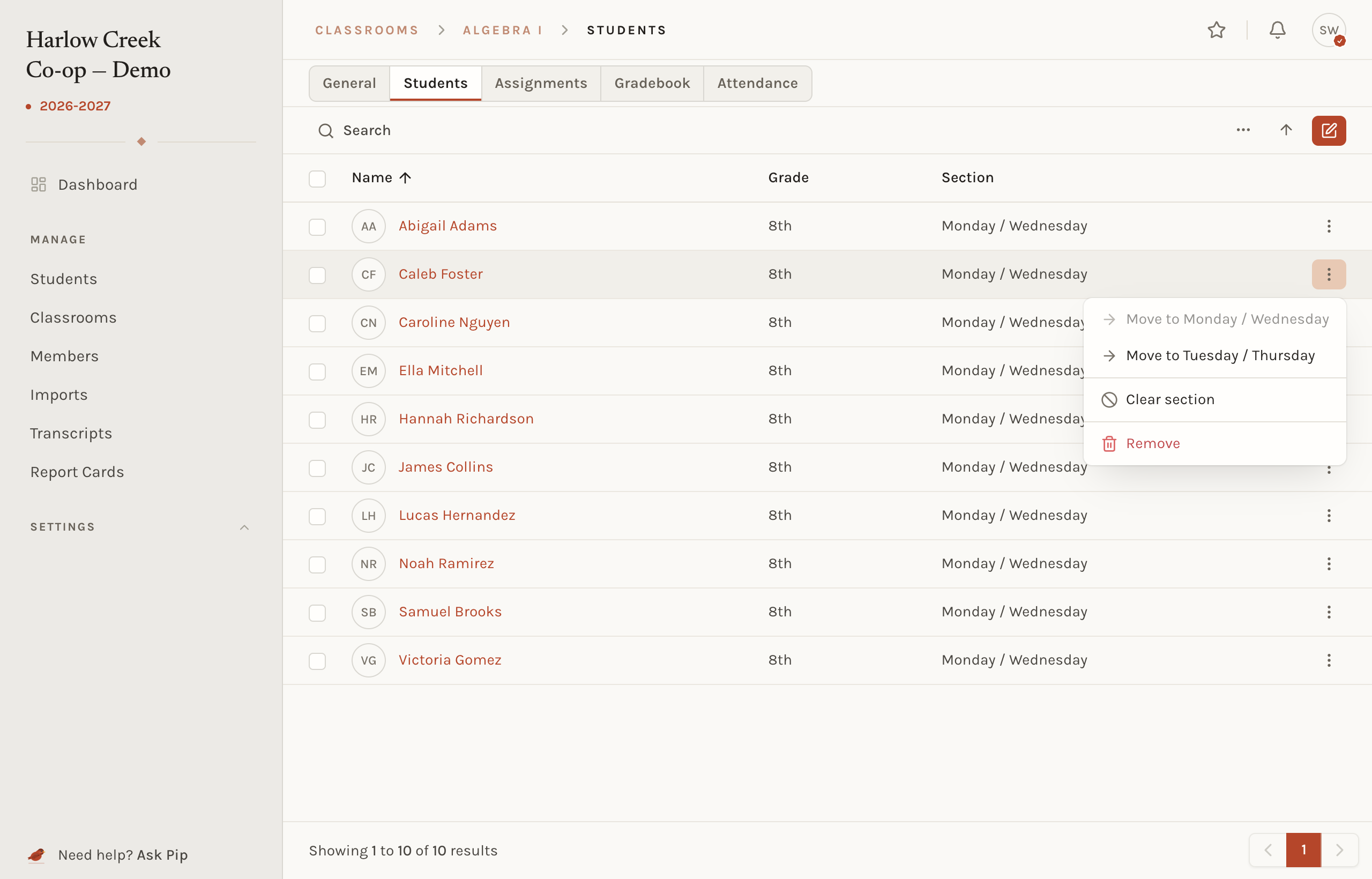
Two prompts keep placements tidy. Adding a section to a classroom that has unplaced students offers to put all of them in it. Removing a section from a classroom asks before it clears the placement of everyone sitting in it.
Where sections show up
Schedules
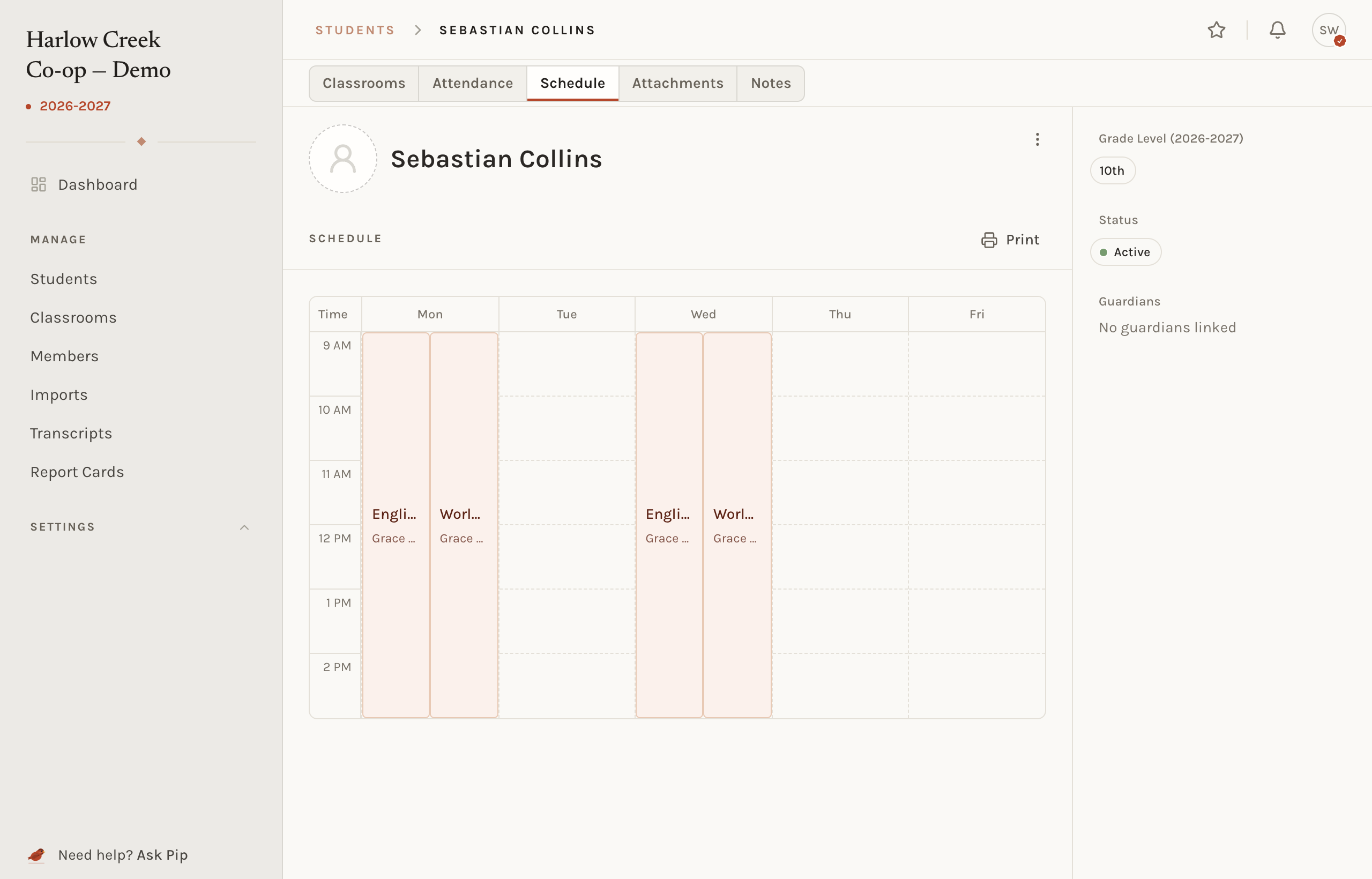
A student's schedule is their placements laid out across the week. It is on the student page, printable, and shown to families on the web and on the phone. A student with no placement in a classroom still belongs to it; they just have no time on the grid for it.
Today
The teacher dashboard and the phone's Today screen list the classes meeting today, in order, with the time each starts and whether attendance has been taken. That list comes from the sections a teacher's classrooms offer. It only appears when today falls inside one of the year's terms and is not a closure, so it goes quiet over the summer, between semesters, and on holidays.
Attendance
Attendance is taken per classroom, per section, per day. When a teacher starts a session, the app picks the section for them: the one meeting right now with no attendance yet, then any of today's untaken sections, then the one starting soonest. A classroom with one section skips the question. The session's start time is the section's start time, so attendance entered at lunch still lands on the period it describes.
The classroom's attendance list shows each session with its section, date, who took it, and the tardy and absent counts. A student's totals on their page and on the family dashboard are summed across every section.
Absence codes
Absence codes are a separate list, behind the Absence codes button on the Attendance page: a name, whether it counts as excused, and whether it is the default when a student is marked absent. They are optional. A school that only needs present, tardy, and absent can leave the list empty.
Schools without periods
A one-room school or a homeschool co-op can define a single section named "Class" that meets every school day, and give it to every classroom. Every student is placed in it, attendance has one session a day, and the schedule shows one block. Or define none: attendance still works, without a suggested section or a schedule.
Common situations
- A section's time changes. Edit it once. Every schedule moves, and the dashboard's idea of "now" moves with it. Past attendance keeps the time it was taken at.
- A classroom stops meeting in a section. Remove it from the classroom. Students sitting in it become unplaced; move them from the Students tab.
- A section is deleted. It leaves every classroom that offered it and every schedule. Past attendance sessions keep their record.
- A student shows no classes on their schedule. They are on the roster but not placed. Open the classroom's Students tab and move them into a section.
Related concepts
Today lists and schedules only appear inside a term. What a session holds and where its marks go is attendance. Whether a teacher can place or move students is a permission. Families see schedules through collaboration.