Collaboration
A guardian is a member of the school linked to one or more students. They see those students and nobody else, and they never edit a grade or a record. Everything else about what families see and say is decided by two Families settings under Settings › People and by what teachers choose to share.
Four channels
| Channel | Direction | Who decides |
|---|---|---|
| The family dashboard | Read only | Nobody; it is always on |
| Shared notes | Two-way, per student | The teacher, per note, within the school setting |
| Announcements | One-way, per classroom | The teacher, per assignment |
| Notifications | Push to the family | The app, from the three above |
The dashboard: always on
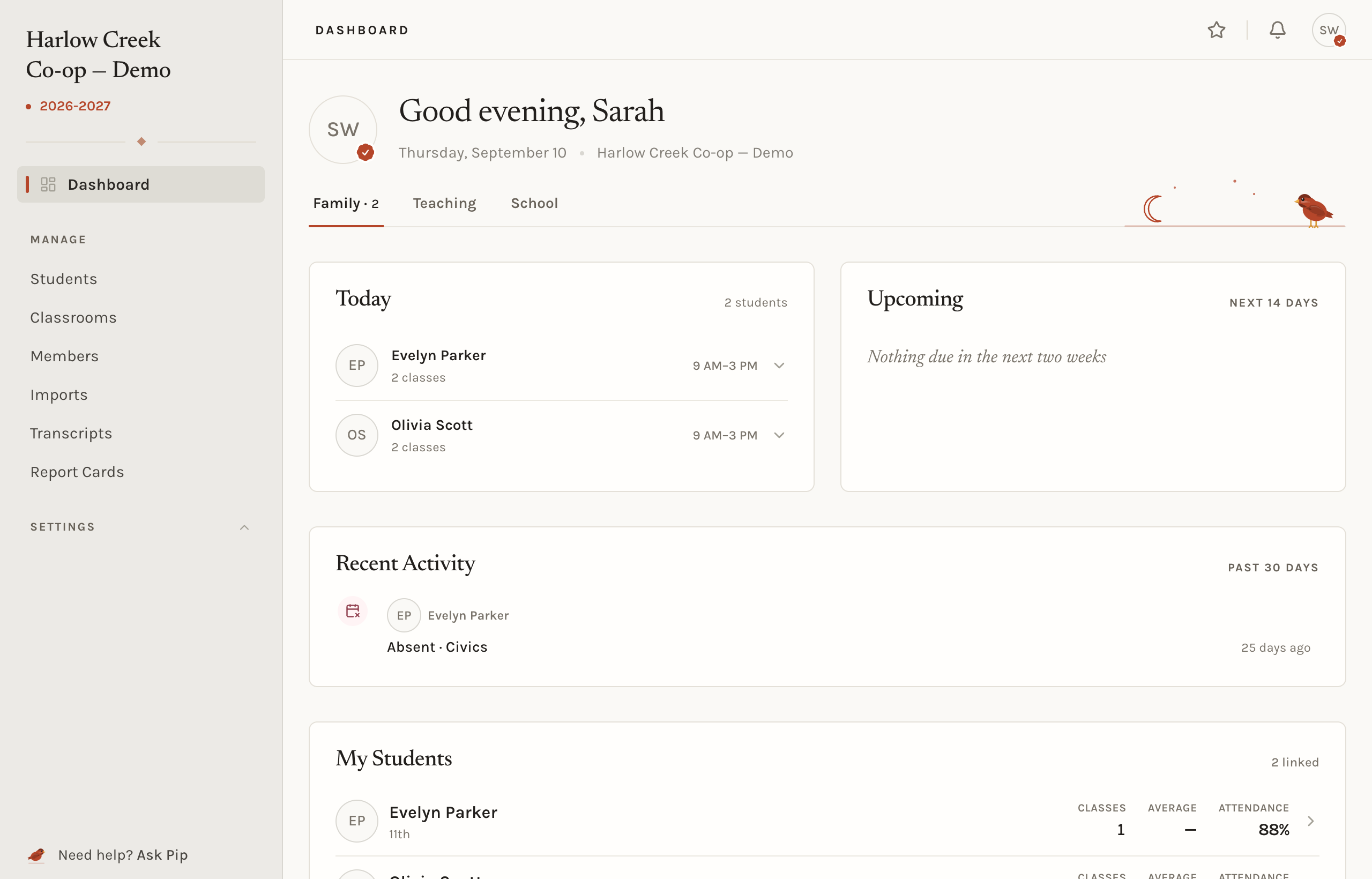
The moment a guardian is linked to a student, they can see:
- Every classroom the student is in, with the current term grade and letter, and the category averages under it.
- Every assignment as soon as a teacher saves it: name, due date, category, and the score once it is graded. There is no publish step.
- Attendance totals and every dated mark.
- The schedule, built from the student's sections.
- Report cards once they are generated.
The family dashboard opens on what needs attention, what is happening today, what is due in the next two weeks, and what changed recently. Each student has a page that answers how the year is going.
Notes: shared one at a time
A note hangs off one of four things: a grade, an attendance record, an assignment, or the student in general. Threads are two levels deep: a top-level post and its replies.
Every top-level post has a Share with family switch. Off, the thread is staff only, and guardians never learn it exists. On, guardians linked to that student see the post and every reply under it. Staff replies on a shared thread are shared too; there is no private aside inside a family thread.
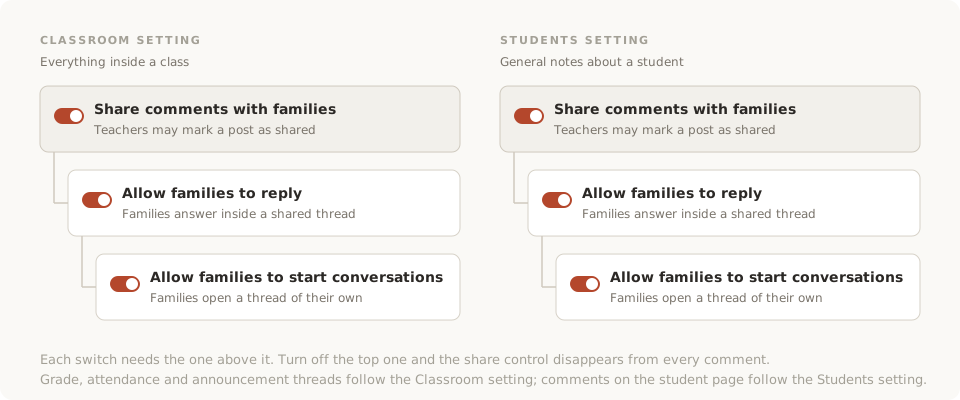
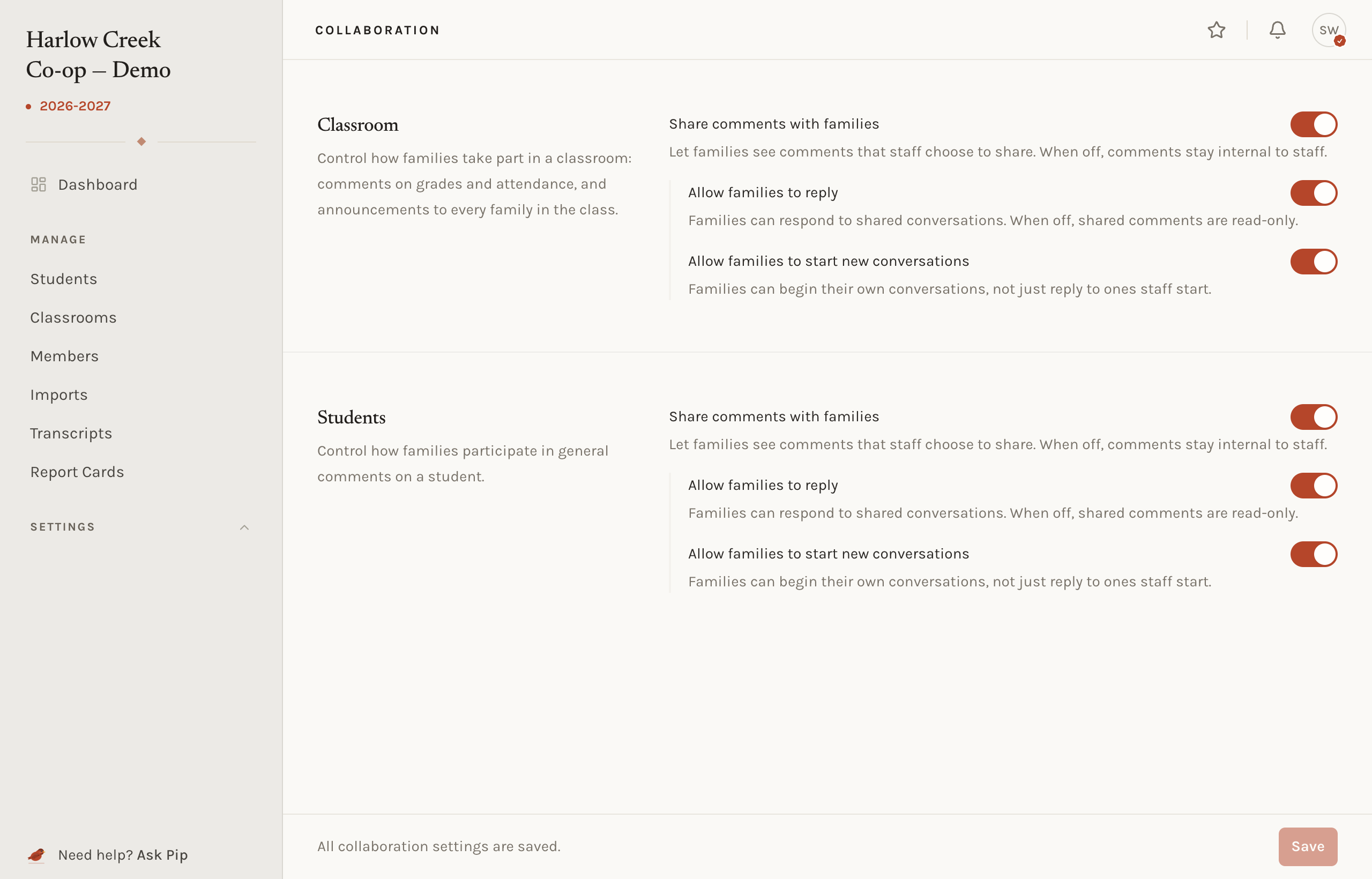
How far a family can take part depends on the school setting:
| Switch | Off | On |
|---|---|---|
| Share notes with families | Nothing is ever shared, and the switch on each note is gone | Teachers may share a top-level post |
| Allow families to reply | Families read shared threads | Families can answer inside a shared thread |
| Allow families to write their own notes | Families only reply | Families can open a new thread, such as a question about an assignment before it is graded |
Each switch needs the one above it. There are two copies of the ladder. The Classroom setting covers grades, attendance, and announcements. The Students setting covers general notes on a student that are not tied to a class, kept on the student's Notes tab. Many schools share inside the classroom and keep general student notes to staff.
Announcements: one note, every family
A teacher who changes an assignment's instructions or adds a resource can post one note on the assignment, and every family in the classroom sees it. The note lives on the assignment, so a student added later sees it too. Announcements are broadcast only: a family with a question asks it in their own student's thread, one scroll down, where it stays private. Announcements follow the Classroom setting; with sharing off, there are none.
Notifications: the bell and the phone
Guardians are told about changes in the app's bell and, if they use the phone app, by push. No email is sent for any of these.
| What happened | When the family hears |
|---|---|
| Grades entered | One notice per student per day, delivered at 4 pm school time, naming the classes |
| Marked absent or tardy | A push on the first mark of the day; later marks that day fold into the same notice |
| A note shared, or an announcement posted | Right away |
| A teacher replies in a shared thread | Right away |
| A report card generated | Right away |
A parent with two children in the same classroom gets one announcement notice, not two.
The phone
The companion app gives guardians a Students tab, an Inbox for the notices above, and the same threads as the web. Teachers get a Today screen for attendance and a Classes tab. Both sign in with the same account.
Bringing a family in
- Go to Members › Invitations and choose Invite Member.
- Enter the guardian's email, tick Guardian, and pick the students under their care.
- Send. They get an email, create an account, and land on their family dashboard.
Link more students later, or remove one, on the guardian's page under Members. A teacher who is also a parent at the school can be given the Guardian role on top of Teacher; they see their classrooms as staff and their own children as a family.
What families never see
- Staff notes on a grade, attendance record or student, with sharing off.
- Attachments on the student profile, whatever the collaboration settings say.
- Other students. A guardian sees their own children's rows and nothing about classmates.
Common situations
- A parent says they cannot see grades. Check that they are linked to the student under Members, and that the student is on a roster with graded work.
- A parent wants to ask a question but has no reply box. The Classroom setting stops at sharing or replying. Turn on the next switch.
- A teacher wants to tell every family something once. Post an announcement on the assignment it concerns.
- A note must stay in the staff room. Leave Share with family off.
Related concepts
What families see is fixed; what staff see is tuned under permissions. The letters and averages on the family dashboard come from the grading scale and categories.