Attendance
Attendance is a set of sessions. A session is one classroom, one section, one date and time, and a mark for every student on that list: present, tardy, or absent. Teachers write sessions. Everything else, the student's page, the family's notice, the office's report, is a view of the marks inside them.
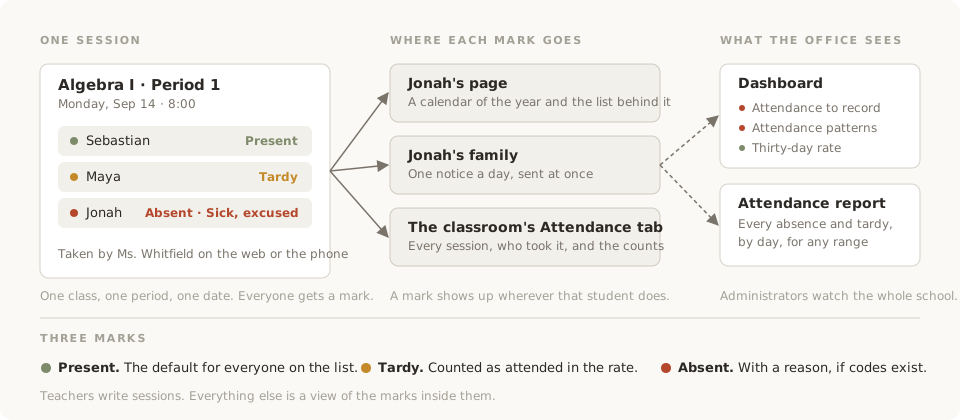
One session
| A session has | Which is |
|---|---|
| A classroom | Where the students come from |
| A section | Which period it describes; optional |
| A date and time | In the school's timezone, set under Settings › General |
| A record per student | Present, tardy, or absent, plus an absence reason |
The section is what ties attendance to the schedule. When a section is chosen, the form lists the students placed in it. If nobody is placed in it yet, everyone on the roster appears. A classroom with no sections lists everyone too. Archived students are left off new sessions.
The date and time default to the section's start time today, so attendance entered at lunch still lands on the period it describes. Which section the form opens on is the app's guess: the one meeting right now with no attendance yet, then any of today's untaken sections, then the one starting nearest now. A classroom with one section never asks.
Taking it
On the web
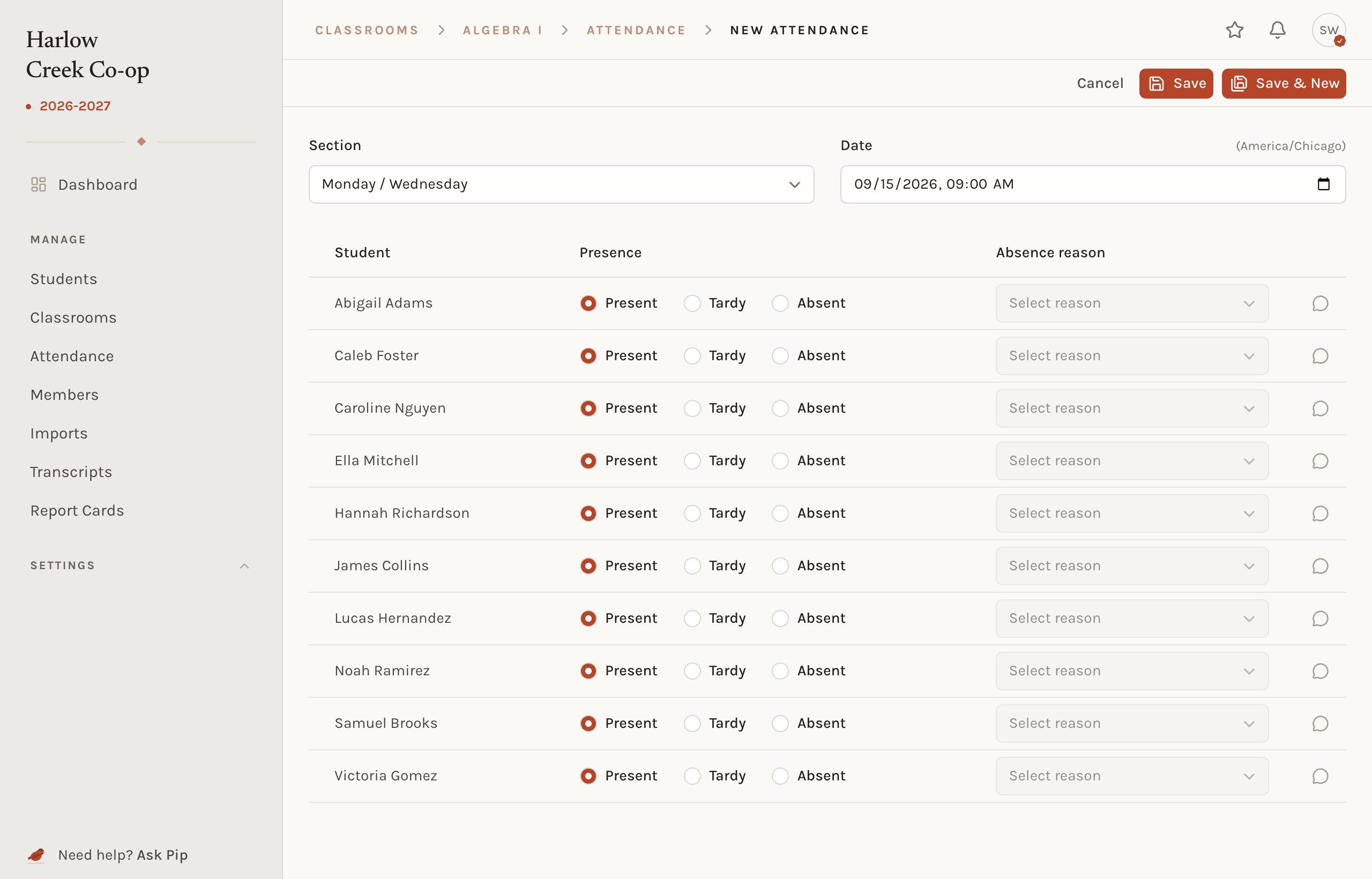
Open the classroom's Attendance tab and choose Create attendance. Every student starts present. Mark the exceptions. Marking a student absent enables the Absence reason menu, with the school's default code already picked. The note button on a row adds a note to that record; its Share with family switch decides whether the family sees it, under the rules on the collaboration page. Save returns to the list. Save and new keeps the form open for the next session.
The teacher dashboard's Today list shows the same thing from the other side: each class meeting today, in order, marked Now while it is in session and Not taken once it has ended without a session. Each carries a Take attendance button, and a pencil once it is taken. The list only appears inside a term.
On the phone
The companion app opens on a Today screen with the same list, the class meeting now on top. Open one and tap a student's row to cycle through present, tardy, and absent, or hold it for the reason and a note. A segmented control at the top marks everyone at once. Save writes to the server, or to the phone when there is no signal, and sends itself when the signal returns. If someone else saved that session first, the phone shows their marks beside yours and lets you decide before saving again.
Fixing it
Open the session from the classroom's Attendance tab. Change any mark or reason and save. Change the section and the student list follows it: students in both sections keep their marks, the rest are dropped, and newcomers start present. Delete removes the whole session.
Where a mark goes
The classroom. The Attendance tab lists every session with its section, date, who took it, and the tardy and absent counts. Search by section or teacher. The toolbar menu exports the classroom's attendance to CSV, with notes included when the person exporting may see them.
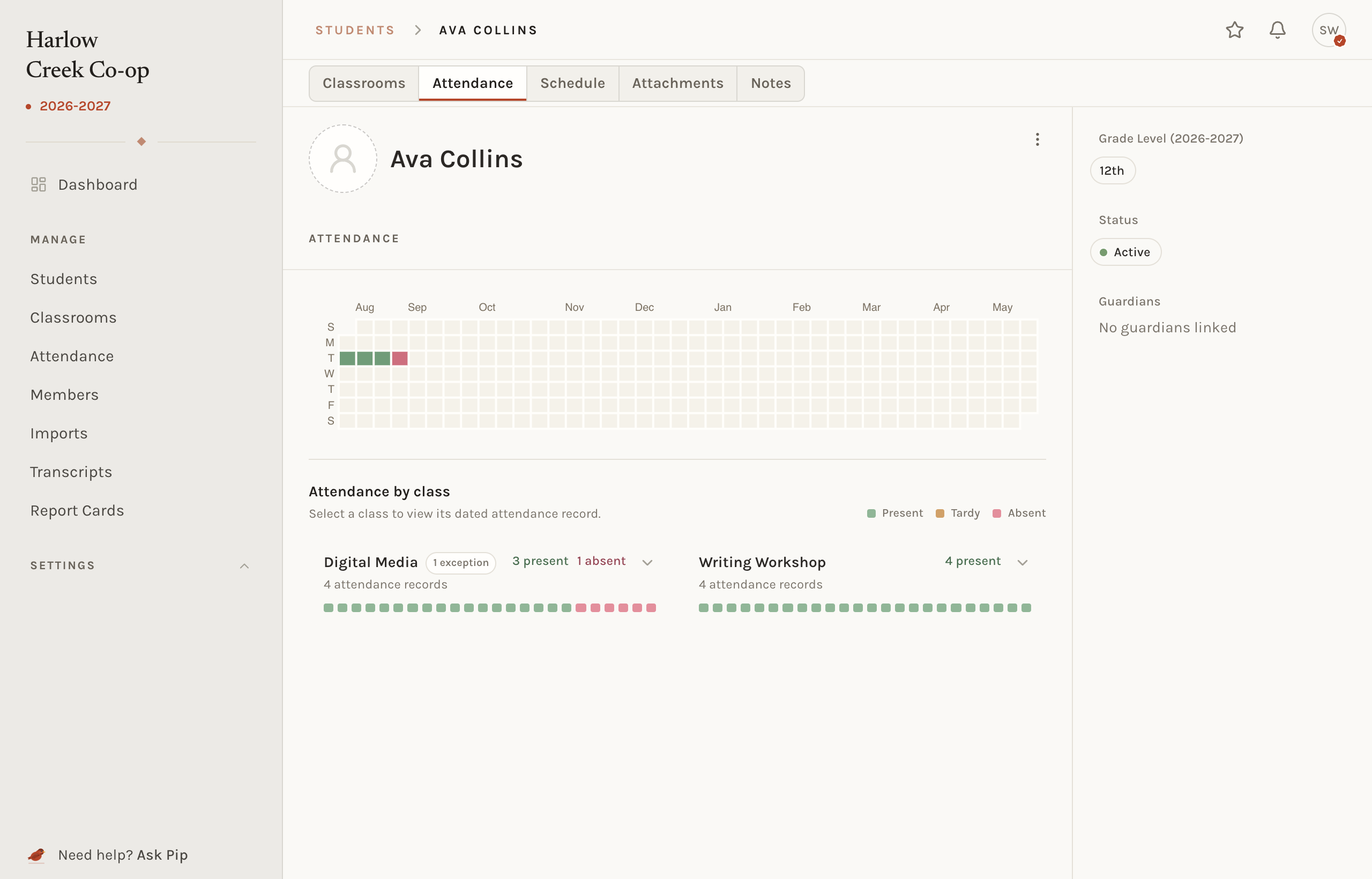
The student. The student page has an Attendance tab: a calendar of the year colored by the worst mark of each day, and a row per classroom that opens into its dated record, each tardy and absence with the reason and any notes. The Classrooms tab shows the counts beside each class. Teachers see this tab while the Teacher role's Attendance switch is on, a permission that is on by default.
The family. A tardy or absence sends the student's guardians one notice for that day, right away, on the web and the phone. Later classes that day fold into the same notice without a second alert. A mark corrected to present drops out of it, and a day with nothing left has no notice. The family dashboard and the phone show the same calendar and list, along with any note a teacher chose to share. Notes kept to staff never reach them.
Watching the school
Administrators have two places to look.
The dashboard
The School view of the dashboard raises three things about attendance.
| Item | What it lists |
|---|---|
| Attendance to record | Meetings that ended today with no session. Each opens the form. |
| Attendance patterns | Students with two or more absences, or three or more tardies, in the last fourteen days |
| Attendance rate | A thirty-day line, with the last seven days called out. Tardies count as attended. |
"Attendance to record" comes from the sections, so it stays empty at a school without them, on any day outside a term, and on a closure.
The Attendance report
Attendance under Manage in the sidebar lists every absence and tardy in the school, one row per student per day, listing each class they missed or were late to: the classroom, the section, the time, the mark, and the reason with whether it was excused. Filter by date, from today back to last month or a custom range, and by status. Sort by date or student. Print lays the same list out on paper.
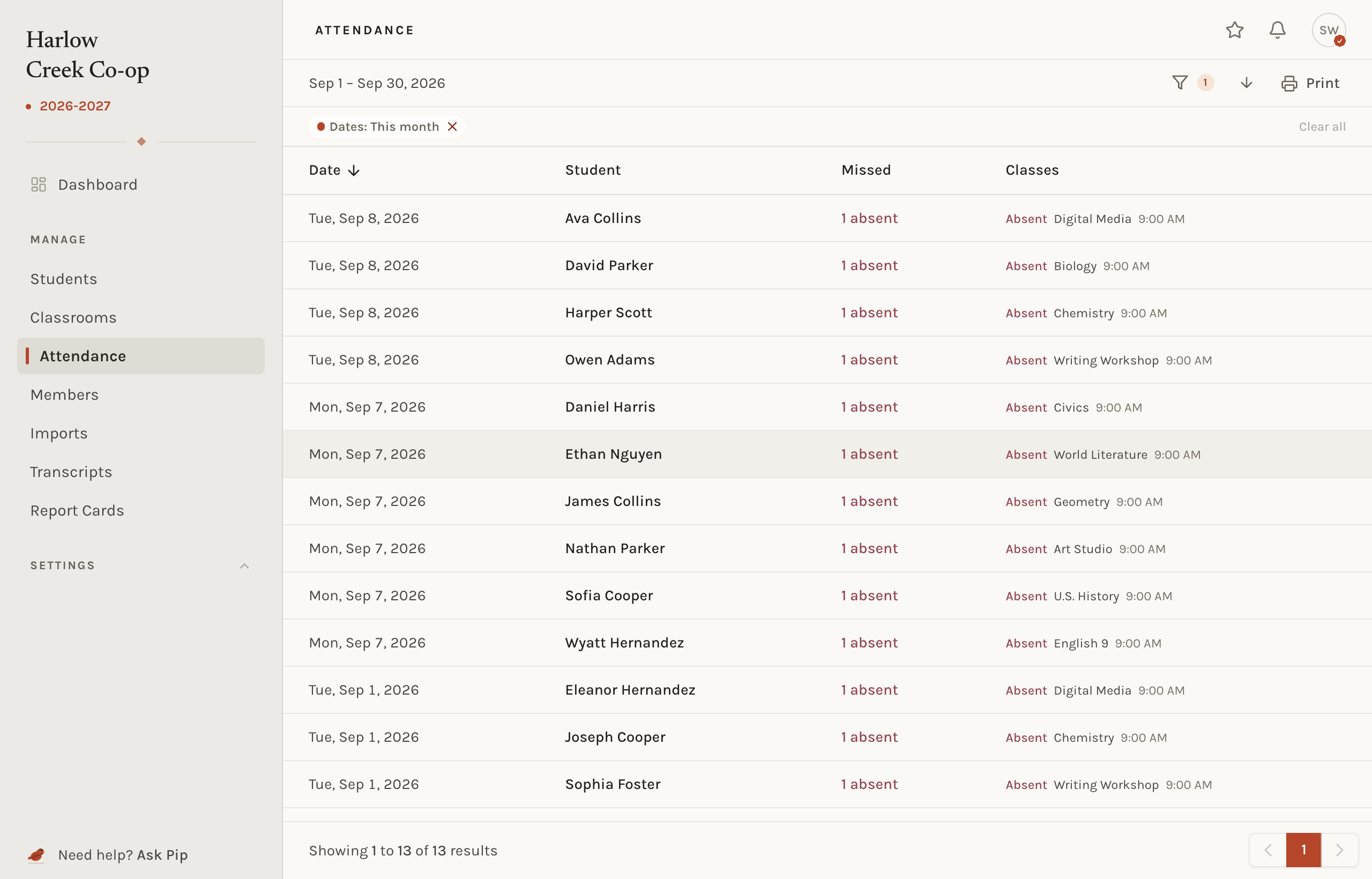
The report is for administrators. A teacher sees attendance through their own classrooms and students. Asking Pip "who was absent today" works for both, scoped to what the asker may open.
Absence codes
Absence codes are the reasons a student can be absent: a name, whether it counts as excused, and whether it is the default when a student is marked absent. They live on the Attendance page, behind the Absence codes button. They are optional. With none defined, the form has no reason column. Excused and unexcused are labels on the report and the student's list; nothing is computed from them.
Who can do what
| Role | Takes attendance | Sees it |
|---|---|---|
| Administrator | Any classroom | The whole school, plus the report |
| Teacher | Assigned classrooms, while Take and edit attendance is on | Their classrooms, and their students' Attendance tab while that switch is on |
| Guardian | Never | Their own children |
Both Teacher switches are under Settings › People and on by default.
Common situations
- A student is missing from the form. The form lists the students placed in the chosen section. Switch the section, or place the student from the classroom's Students tab. Archived students never appear.
- A family got a notice for a mistake. Open the session and mark the student present. The notice is withdrawn.
- The dashboard wants attendance for a class that did not meet. A section meets every week the term is in session, so a holiday needs a closure under Settings › Schedule. Add one and the prompt clears; there is nothing to record.
- Two teachers took the same period. Both sessions stand. Delete the one that should not.
- The school has no periods. Attendance still works. The form lists the whole roster, the time defaults to now, and the student and family views are the same. Only the dashboard's Today list and "Attendance to record" stay empty, since both come from sections.
Related concepts
Sessions are filed by section and only expected inside a term. What a family sees and can say about a record is collaboration. Whether a teacher can take attendance or open a student's record is a permission.