Permissions
A person joins a school as a member with one or more roles: Administrator, Teacher, Guardian. Roles combine. The Administrator role is unrestricted inside its school. The Guardian role is fixed. The Teacher role is the one administrators tune, once, for every teacher in the school.
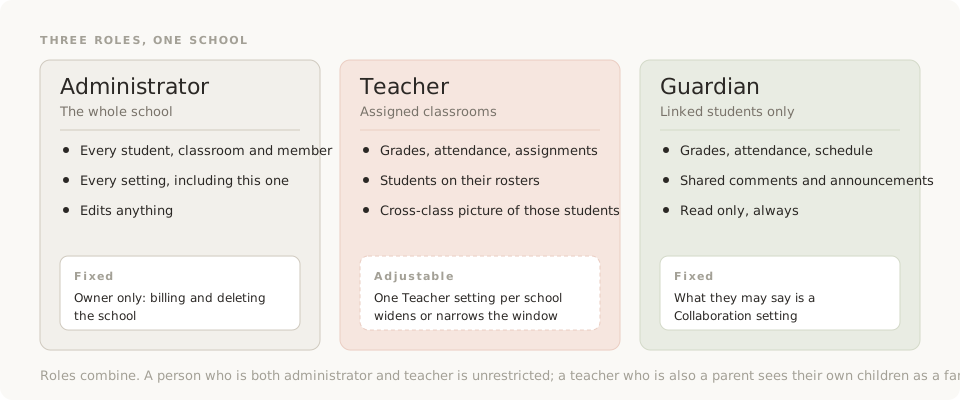
The three roles
| Role | Sees | Edits | Tuned by |
|---|---|---|---|
| Administrator | The whole school | Anything | Nothing; always whole |
| Teacher | Assigned classrooms, plus a window onto students | Within assigned classrooms | The Teacher setting |
| Guardian | Linked students | Nothing | The Families settings only |
Roles combine. A person who is both administrator and teacher is unrestricted. A teacher who is also a parent sees their classrooms as staff and their own children as a family.
Administrators
An administrator can open every page and change every setting in their school: students, classrooms, members, terms, grades, attendance, collaboration, and permissions. Changing the Teacher setting never narrows an administrator, even one who also holds the Teacher role.
Two things belong to the school's owner alone, the person who created it: billing and deleting the school. Everything else an administrator can do, any administrator can do.
Teachers
A teacher's home is the classrooms they are assigned to. Those appear under My classrooms in the sidebar, and inside them a teacher grades, takes attendance, and manages assignments. The Teacher setting under Settings › People decides everything beyond that. There is one setting per school, applied to every active teacher. No per-person grants, no custom roles.
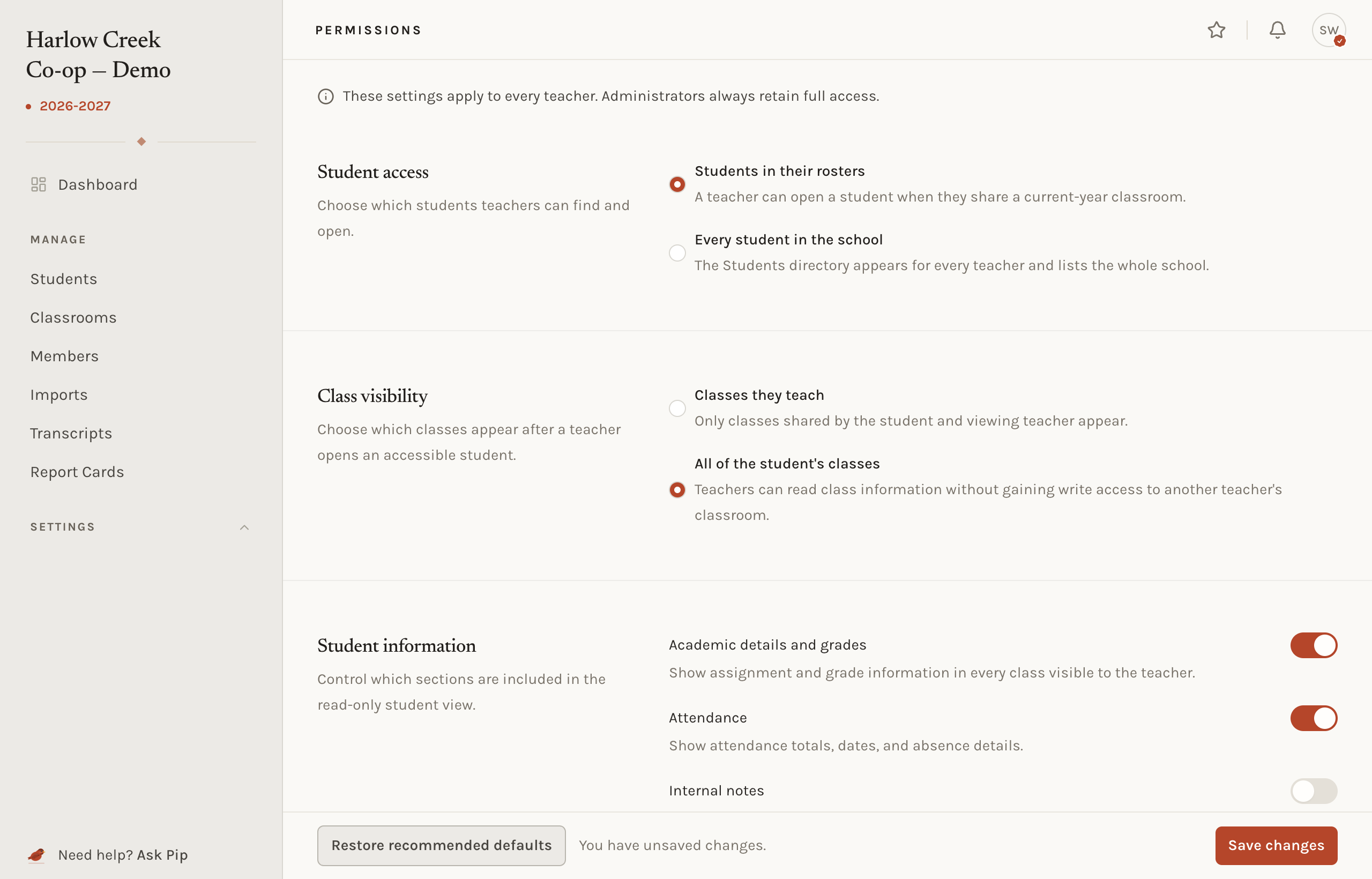
The setting has three parts, answering three questions.
Which students can a teacher open?
| Setting | Choices | Default |
|---|---|---|
| Student access | Students in their rosters, or every student in the school | Rosters |
| Class visibility | Classes they teach, or all of the student's classes | All |
With rosters, a teacher can open any student who shares a current-year classroom with them, and nobody else. With the whole school, the Students directory appears in every teacher's sidebar as a read-only list. Class visibility decides what the teacher sees after opening a student: only the classes they share, or the student's whole day. Seeing another teacher's class never grants a way to edit it.
What does a teacher see on a student?
Each of these is a switch. On, the section appears in the teacher's read-only view of an accessible student. Off, the data is left out of the page entirely, not merely hidden.
| Section | Default |
|---|---|
| Academic details and grades | On |
| Attendance | On |
| Attachments | Off |
| Guardian information | Off |
| Report cards and transcripts | Off |
| Other staff's internal notes | On |
The last switch covers reading only. A teacher can always write a note on a grade, an attendance mark or a student they can open, and always reads their own. Off, they stop seeing the internal notes other staff wrote.
Report cards and transcripts shows a student's records on the student page. A teacher who can also open every student gets the Report Cards pages too, to generate and delete cards.
The defaults give a teacher the cross-class picture that helps them teach, and keep the sensitive parts of the profile to administrators.
What can a teacher do in their classrooms?
| Action | Default |
|---|---|
| Create classrooms | Off |
| Edit classroom details | On |
| Assign and remove teachers | On |
| Add, move, and remove students | On |
| Create and manage assignments | On |
| Enter and edit grades | On |
| Take and edit attendance | On |
| Delete assigned classrooms | Off |
These only ever apply to classrooms the teacher is assigned to. A school that wants teachers to build their own classrooms turns on Create classrooms; a school that wants the roster fixed by the office turns off Add, move, and remove students.
Restore recommended defaults puts the page back to the tables above. Saving applies to every teacher on their next page load; nobody has to sign out.
Guardians
A guardian sees the students they are linked to, and only those. The view is read only. Whether a guardian can reply to a thread or start one is a collaboration setting, not a permission. Nothing in the Teachers settings changes what families see.
Membership
Roles are set when a person is invited and can be changed later on their page under Members. Tick Administrator, Teacher, Guardian in any mix. A teacher's classroom assignments and a guardian's linked students are edited on the same page.
A member can be made inactive. Their account and everything they did stay in place; they just cannot get in until they are made active again. Use it for leave and for staff who may return. Removing a member takes their access away at once and keeps the grades and attendance they entered.
What never changes
- Schools are separate. A person with roles at two schools switches between them in the sidebar and sees one at a time. No role in one school reaches into another.
- The owner's two rights cannot be granted to anyone else.
- Guardians never write. No setting turns a family into an editor.
- Administrators are whole. There is no restricted administrator.
Common situations
- A teacher cannot open a student. With roster access, they must share a current-year classroom. Add the teacher to that classroom, or widen Student access to the school.
- A teacher should see the guidance counselor's notes. Turn on Other staff's internal notes for the Teacher role. It applies to every teacher; there is no per-person switch.
- One teacher should run the office. Give them the Administrator role. There is no halfway.
- A substitute needs a classroom for a month. Invite them as a teacher assigned to that classroom, and make them inactive when the month ends.
Related concepts
What families can say is set under collaboration. The owner's billing right is explained under billing.